

Today, Community launched Enhanced Digital Banking, our updated online banking site and mobile banking app. We put together this newsletter as a guide to answer any questions that may arise as you log into the updated site or app for the first time. If you continue to experience any issues and are unable to log in, fill out the form on the right side of this page.
During this time, be on the lookout for bad actors trying to commit fraud. Individuals may impersonate bank employees and ask customers for usernames, passwords, or other Online Banking credentials. The bank will never email, text, or call asking for your User ID or Password. When in doubt, hang up and call the bank back at 773-685-5300.
Enhanced Digital Banking Launch Guide
How do I log into the updated online banking site?
Log in using the “Login” box on the bank’s homepage.
How do I access the updated app?
You have two options:
-
Through the Current Mobile Banking App. Open your existing app and follow the prompt to download the new version. After installation, log in using your current User ID and Password.OR
Once the new app has been downloaded, you should delete the old app.
What will be different when logging in for the first time?
You’ll be prompted to sign into the updated site or app with your current User ID and Password. During your first login, you’ll be prompted to verify your identity by choosing either a text message or phone call to receive a one-time passcode. Enter the passcode and submit to complete a secure login.
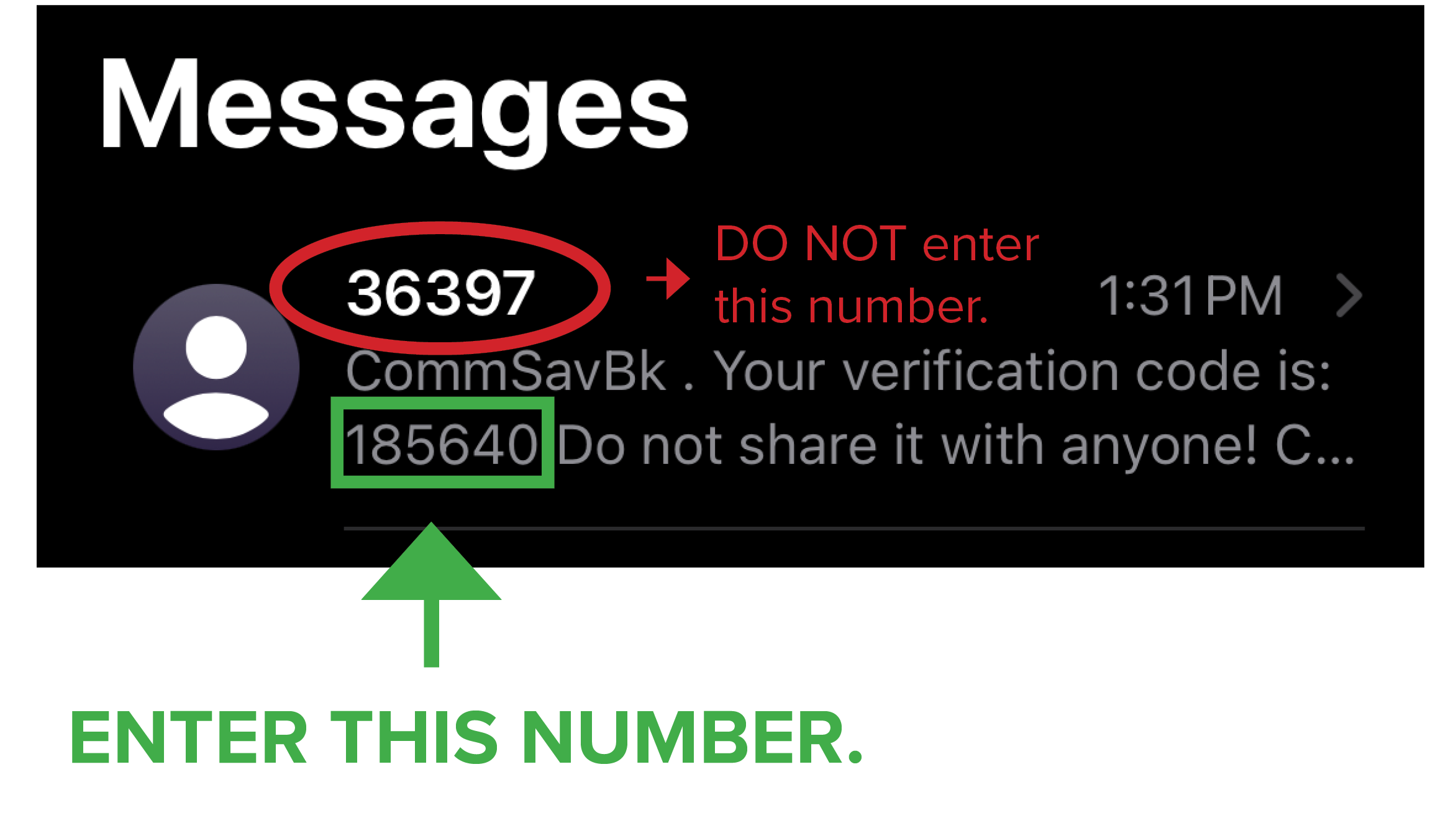
Some users will be prompted to update their User ID and Password upon logging in for the first time. (The updated site requires a User ID to be at least nine characters and a Password to be between 12 - 32 characters).
What if I forgot my User ID or Passcode?
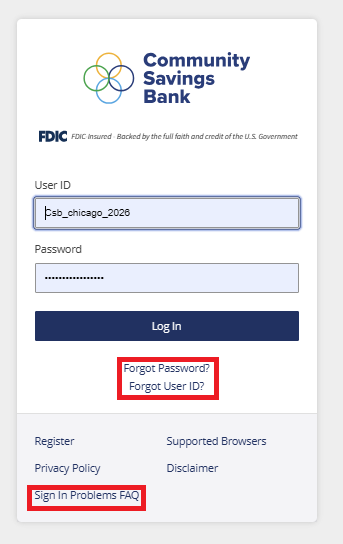
If you are logging in for the first time and do not remember your User ID and Password, you can click the “Forgot Password?” and “Forgot Username” links. More information is also listed in the “Sign in Problems FAQ” link.
Please note, the “Forgot User ID” link is not available on our mobile app. To access this link, visit communitysavingsbank.bank, click the “Login” box on our homepage, then click, “Forgot User ID.”
What if I use biometrics (fingerprint or face ID) to log in?
If you normally log in using biometrics, make sure you know your User ID and Password before the upgrade. You’ll need to enter these credentials the first time you access the new system. Once you’ve logged in successfully, you can re-enable biometric authentication for future logins.
What are the updated User ID and Passcode requirements?
Enhanced Digital Banking has stronger User ID and Password requirements.
If your User ID is fewer than nine characters, you will be prompted to change it the first time you log into the Enhanced Digital Banking site.
Password requirements are also changing. The updated site requires passwords to be between 12 - 32 characters long. The password must contain at least one letter, one number, and a special character from the following list: ~`@#$%^&*()_-+={[]}|\”<,>.?/ and space.
What if I need help navigating the new site?
What if I need help navigating the new site?
Check out the tutorials posted on this page.
What if I still cannot login or something is not right with my account?
If you experience issues with the updated site or app, visit this page and fill out the form on the right side of the screen. One of our staff members will follow up with you as soon as possible.