

Yesterday, Community launched Enhanced Digital Banking, our updated online banking site and mobile app. Since we launched the site, there have been a few issues that have come to our attention, noted below:
User IDs and Passcodes.
Previous messaging said some customers would be prompted to update their User ID or Password upon logging into Enhanced Digital Banking. (In previous newsletters, the bank wrote this would happen if a User ID was fewer than nine characters or if a Password did not meet the new requirements).
We learned yesterday that users will only be prompted to create longer User IDs or Passwords when changing them in the “Profile” tab of the updated site.
As a reminder, if you try to update your User ID or Password in the “Profile” tab, the updated site requires a User ID to be at least nine characters and a Password to be between 12 - 32 characters.
Wrong number listed for multi-factor authentication.
The bank received many calls yesterday about customers seeing a secondary phone number listed to receive text messages and voice calls for multi-factor authentication codes.
If this happens to you, click the dropdown icon next to the phone number that displays and click on the correct phone number. If you still do not see your number listed, call the bank at 773-685-5300 or fill out the form on this page. (See the screenshots below).
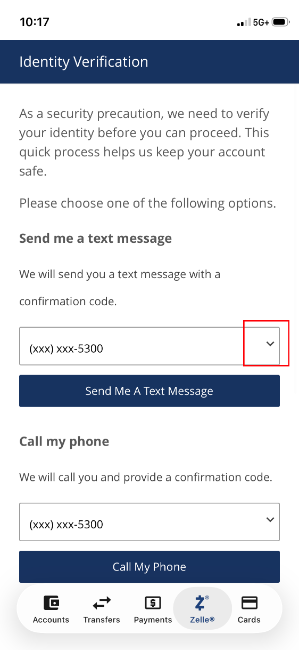
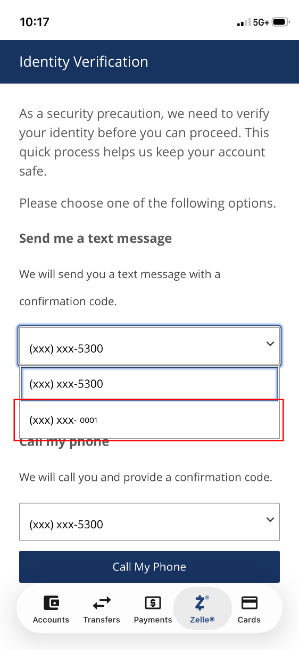
Updating contact information in the Profile tab.
Community only allows customers to update their email address on Enhanced Digital Banking; The bank does not allow customers to change their phone numbers when logged in. We do this to prevent account takeovers, which continue to be a major source of fraud.
If you need to update your phone number, call the bank at 773-685-5300 or fill out the form on this page.
Phone number linking.
Some customers reported that their phone number was not linked on Enhanced Digital Banking. If you experience this, please call the bank at 773-685-5300 or fill out the form on this page.
Setting up biometrics (fingerprint and face ID).
To set up biometrics, customers need to go to "Menu," "Settings," then "Authorized Device Enrollment." Next exit the app and go back to the login page. See the tutorial linked below for full instructions.
Multi-factor authentication for Zelle®.
The bank is aware that users are prompted to enter multi-factor authentication when sending Zelle® payments. We are working with our vendor to remove it.
Continue to beware of fraud.
During this time, be on the lookout for bad actors trying to commit fraud. Individuals may impersonate bank employees and ask customers for usernames, passwords, or other Online Banking credentials. The bank will never email, text, or call asking for your User ID or Password. When in doubt, hang up and call the bank back at 773-685-5300.